

Scans and Scan Configuration
This guide explains how Bigeye scans work and how to configure scan jobs effectively. It is intended as a deeper reference for users who already understand the basic setup flow from the “Creating Your First Scan” guide.
What a scan job is
A scan job defines:
- what data is scanned
- which classifiers are used
- how the data is scanned
- when the scan runs
A scan job produces scan runs. Each run captures the output of that job at a point in time. Bigeye supports automated, scheduled scan jobs for structured data sources connected to Bigeye.
What can be scanned
Scans support structured data sources connected to Bigeye. Scan scope can be defined at the:
- source level
- schema level
- table level
Virtual tables can also be scanned. Unstructured file scanning is currently out of scope. Semi-structured values found within structured sources are supported for some data sources and detection methods. If you have specific cases of semi-structured data in your structured data sources, please inquire about them through your Bigeye rep.
Choosing scan scope
When configuring a scan job, choose scope carefully. Broader scope increases coverage, but it can also increase cost and run time. Currently, scan scope cannot be edited after the initial save of the scan job. Make sure the source, schema, and table selection is right before saving the job. Scan type also cannot be edited after creation. If you need a different scope or a different scan type later, create a new scan job.
Tables added to sources or schemas after scan creationThe tables in a scan's scope are locked once the scan has been created. Tables added to a source or schema that is included in a scan scope will not be automatically added to the scan. To include these tables, a new scan must be created.
Choosing a scan type
Bigeye supports four main scan types:
Auto scan
Auto scans begin with a full-table scan on the first run, then use incremental scanning on later runs. This type is the most thorough while also being efficient with compute costs. Auto scans require a valid Row Creation Time (RCT) column — see the Row Creation Time section below.
Full table scan
A full scan checks all rows and all columns on every run. This is best for smaller tables, high-risk datasets, tables with no RCT column, or initial baseline scans. Full scans can be expensive on large tables.
Incremental scan
Incremental scans check only new or updated data after a configured starting point, and they also pick up new columns. Both incremental and auto scans depend on a valid Row Creation Time (RCT) column — see the Row Creation Time section below.
Sampled scan
Sampled scans scan all columns but only a subset of rows. Users configure:
- minimum rows to scan
- percent of rows to scan
This is useful when cost or performance matter more than exhaustive coverage. The tradeoff is that sampled scans can miss sensitive data.
Scheduling scans
Scan schedules are configured on the scan job. Supported schedule cadences include:
- daily
- weekly
- monthly
- quarterly
- semi-annual
- annual
All dates and times are UTC. Any of your Bigeye custom schedules that have been configured can be used for the scan schedule as well. Users can also manually run a scan job immediately by checking the "Run scan on save" checkbox in the scan configuration. Ad hoc scans are also supported.
Schedule dates are literal
Scheduled dates should be interpreted literally. For example:
- choosing the 28th means the run happens on the 28th of each month
- if the selected day does not exist in a month (e.g. 29th, 30th, or 31st), Bigeye will use the latest valid day in that month
Users who need an end-of-month schedule can achieve this by specifying the 31st, which will always resolve to the last day of the month.
No concurrent runsScan runs do not run concurrently for the same scan job. If a scheduled run is due while another run is still in progress, the scheduled run is skipped and users will be notified. This avoids overlapping execution and conflicting interpretations of scan state.
Row Creation Time (RCT) columns
RCT columns are required for incremental and auto scans. They allow Bigeye to determine which rows are new or updated since the last relevant scan point. During configuration, Bigeye will suggest:
- RCT columns already defined on observability metrics
- RCT candidates based on string patterns such as "create", "update", etc.
If no previously set, table-level RCT is available, the UI may populate a recommended column instead. Users must verify that the recommended column is correct before saving.
Tables with no RCT column defined will be treated with a full table scan on each run. Missing RCT columns will reduce scanning efficiency considerably.
RCT becomes locked
After the scan job has been saved, the RCT column is locked and not user-editable. This helps preserve the integrity of incremental scan logic and historical interpretation.
RCT null rows are re-scanned
Table rows with null values in the selected RCT column are re-scanned on every incremental run because Bigeye cannot tell whether they were scanned before. This can materially increase compute usage over time. It is advised to clean up null RCT values where possible to keep incremental scans efficient.
Boundary rows are re-scanned
In addition to null-RCT rows, Bigeye re-scans "boundary rows" on each auto/incremental run to account for late-arriving data. Boundary rows are those whose RCT value falls near the maximum RCT observed in the previous run. For the purposes of computing the boundary, Bigeye truncates the max-RCT value to seconds (discarding milliseconds and beyond). This ensures that rows arriving slightly after the previous scan's cutoff are not missed.
Incremental scan start time
For incremental scans, you define a starting point in time. The first run scans all rows where the RCT column is on or after that date. Each subsequent run scans only rows that are newer than the most recent data timestamp observed in the previous run (max RCT).
Moving the start time for incremental scans
Users can edit the incremental scan start time, but any change after the scan has already run will mark every column for a reset scan. In practice, this means all rows and all columns may be scanned again on the next run.
Reset scans and clearance behavior
Aggregate results intentionally err on the side of sensitivity. If a prior run found sensitive data in a column, that finding remains in aggregate results until the user applies a reset scan on the column. When a reset scan occurs, Bigeye queues a re-scan on all rows of the table for just the selected column so outdated findings can be cleared. This is relevant for auto, incremental, and sampled scans.
To apply a reset scan, navigate to your scan job's aggregate findings page and select the reset icon on the far right of the findings table.
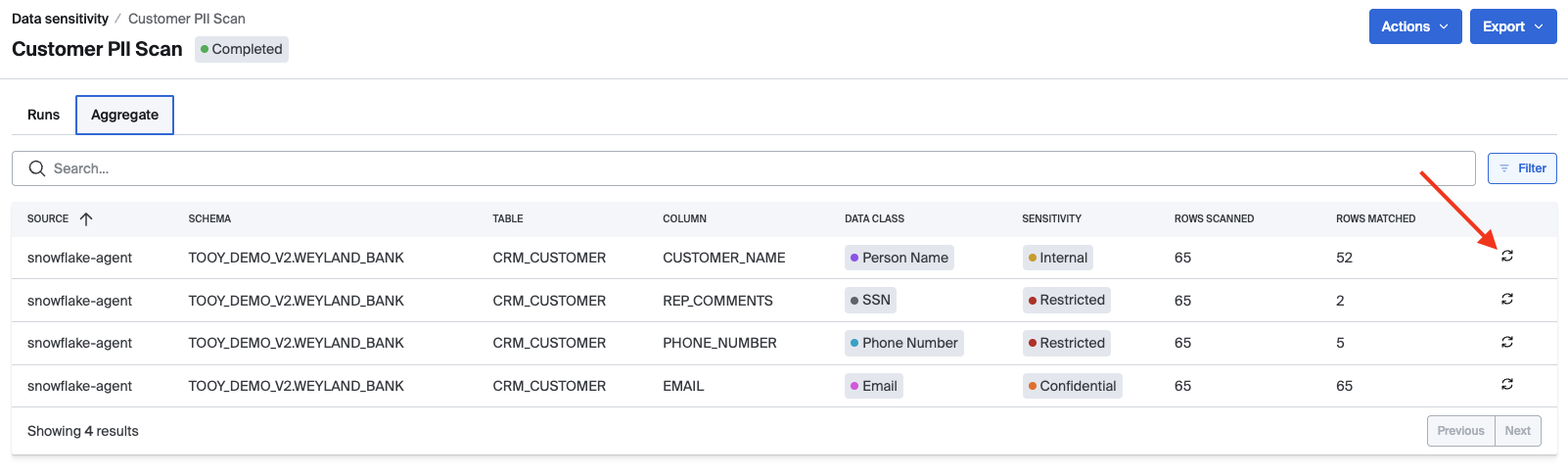
Note: Tables without an RCT column selected are not eligible for reset scans. Without RCT support, Bigeye will perform full scans instead.
Editing scan jobs
Users can edit many parts of a scan job, but not everything.
Editable:
- name
- description
- classifiers
- schedule
- notifications settings
Not editable:
- data scanned
- scan type
- RCT column selection
Also note that while a scan is actively running, the scan job cannot be edited or deleted.
Notifications
Scan jobs support notifications using the same general notification model used in other parts of the Bigeye platform. Notifications can be configured at the scan job level. Notifications are sent for scan run failures and skipped scheduled runs.
Reliability and large-table behavior
Scans can take a while to complete, especially on large tables. If a scan includes multiple tables, Bigeye publishes findings for each table as soon as they are available — you do not need to wait for the entire scan to finish before reviewing results.
Large tables are broken into chunks for scanning. Bigeye attempts to infer a suitable partition column; if it cannot, the scan will error and the user must assign one manually. That partition choice is then persisted for future runs.
Scan runs may be batched, and users should rely on run status, completion time, and notifications rather than expecting real-time output.
Updated 5 months ago