

Creating & Managing Agent Jobs
Create, trigger, monitor, and delete batch agent jobs from Bigeye
Once a host is registered, you create and manage its batch agent jobs from Bigeye instead of driving them with per-agent CLI commands or cron. An agent job is a reusable definition that targets a registered host and a batch agent type; each time it runs it produces a run whose status is reported back to Bigeye.
Batch agents onlyJobs can be created for the batch agents — Lineage Plus, DataHealth, and External Monitors. The persistent agents (Data Source, SDS, Cross-Source) are not yet orchestrated and have no jobs; keep managing them with their per-agent commands. See current availability.
Concepts
| Term | Meaning |
|---|---|
| Host | A machine running the orchestrator, brought online with bigeye-agent register. |
| Job | A saved definition: a target host, a batch agent type, and the parameters/config for that run. |
| Run | A single execution of a job. Runs carry a status (queued, running, succeeded, failed, timed out, canceled) that is reported back to Bigeye. |
A job can have at most one active (queued or running) run at a time. Triggering a job that already has an active run, or deleting a job while a run is active, is rejected — cancel the active run first.
Creating a job
Open Settings → Agents → Jobs in Bigeye and select Create job.
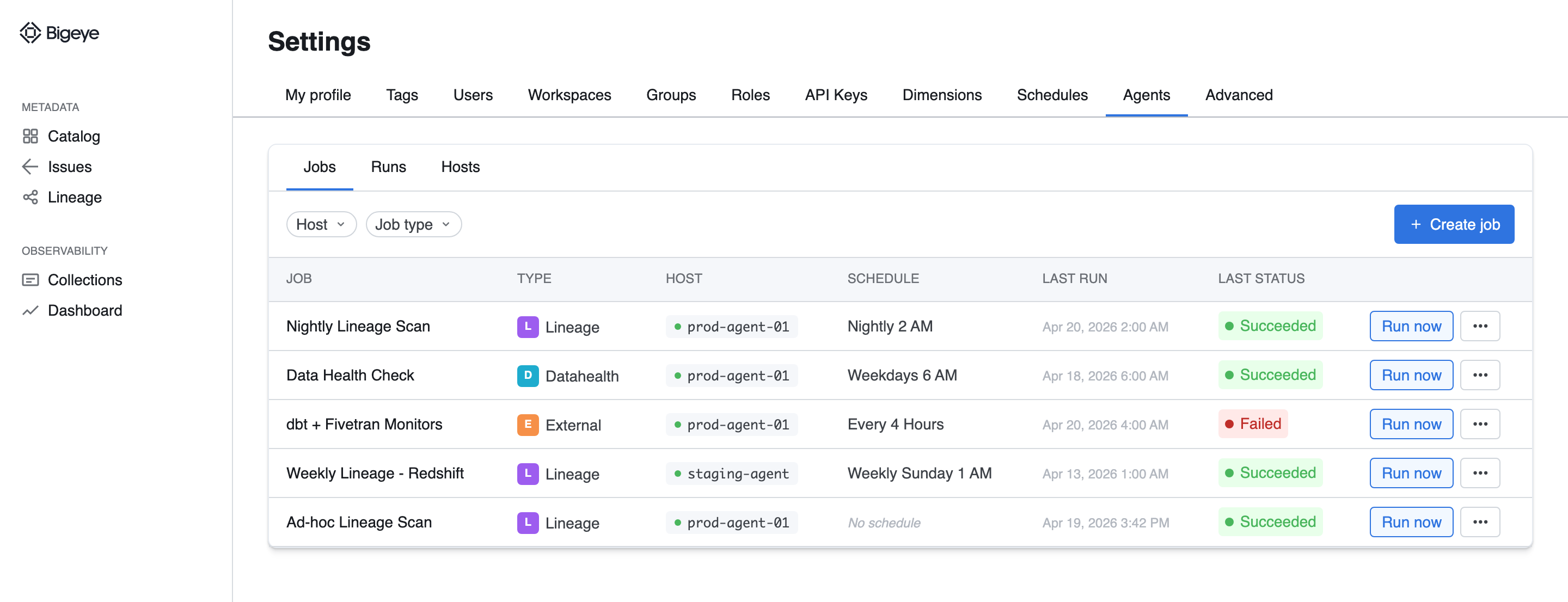
The Jobs tab under Settings → Agents. Each job shows its agent type, target host, schedule, and last run status; Create job opens the job form. Representative mockup; the shipped UI may differ.
In the job form:
- Select the registered host to run on. Only hosts whose
managed_agentsinclude the chosen agent type are eligible. - Select the agent type — Lineage Plus, DataHealth, or External Monitors.
- Provide the parameters for the run (for example, the connector/source to collect, or a config file name). The available fields depend on the agent type and mirror that agent's
runcommand options. - Optionally set a schedule so Bigeye triggers the job automatically; leave it unscheduled to run only on demand.
- Save the job.
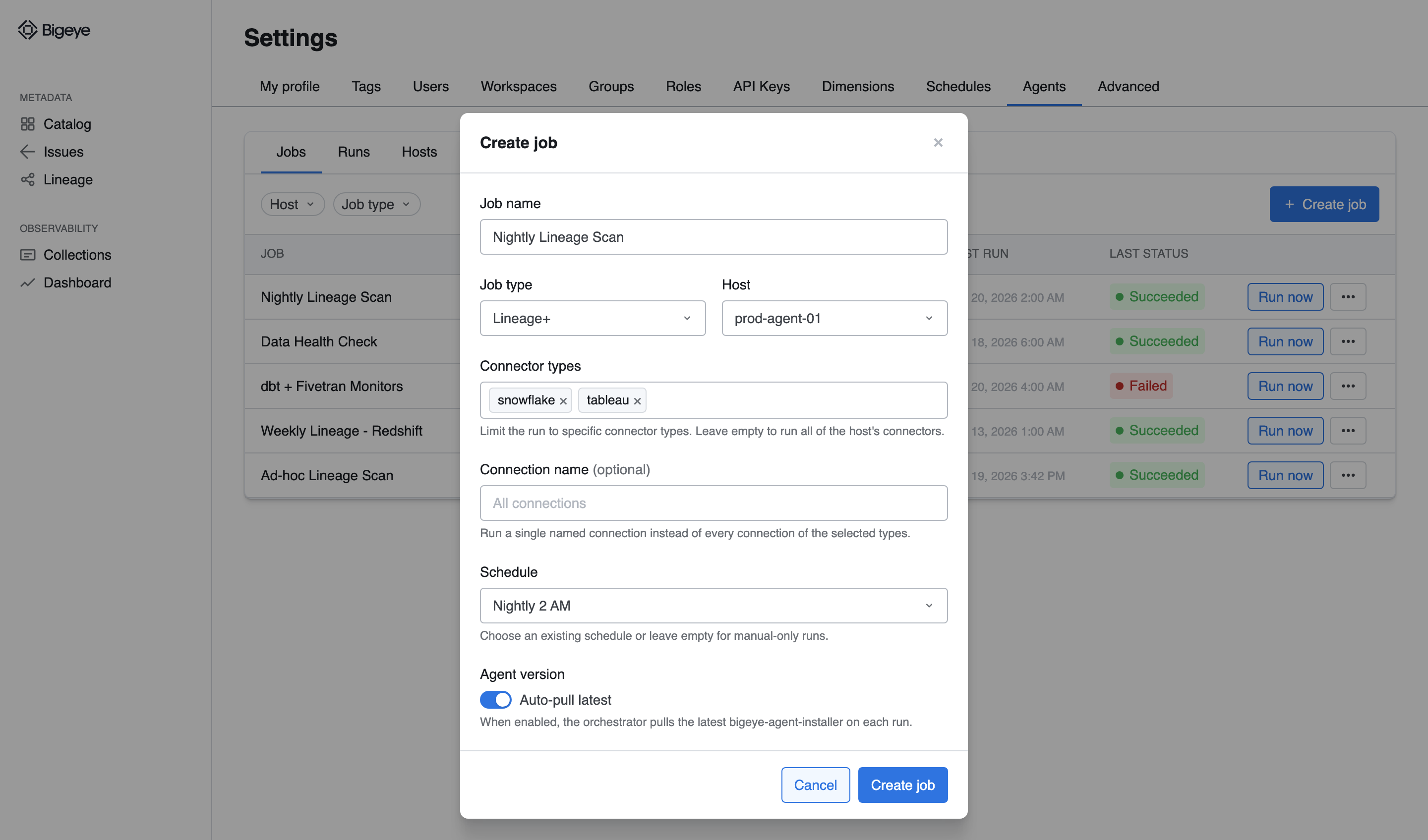
The Create job form, here for a Lineage+ job. The parameter fields between Host and Schedule are specific to the agent type — Lineage+ and External Monitors take connector types and an optional connection name; DataHealth takes a file name. Representative mockup; the shipped UI may differ.
Triggering a run
Trigger a saved job on demand with Run now in the Jobs list (shown above), or from the job's detail view. Bigeye dispatches the run to the orchestrator on the target host, which launches the appropriate agent container and reports run status back to Bigeye as it progresses.
Because a job allows only one active run at a time, the trigger action is unavailable (or returns a conflict) while a run is already queued or running. Wait for the active run to finish, or cancel it, before triggering again.
Monitoring runs
Each run reports its lifecycle status back to Bigeye, so you can follow a job's progress in the UI. The Runs tab under Settings → Agents lists runs across all jobs; filter by host, job type, or status.
- Status progresses through queued → running → succeeded / failed / timed out / canceled.
- Run history lists prior runs with their trigger source, start time, and duration.
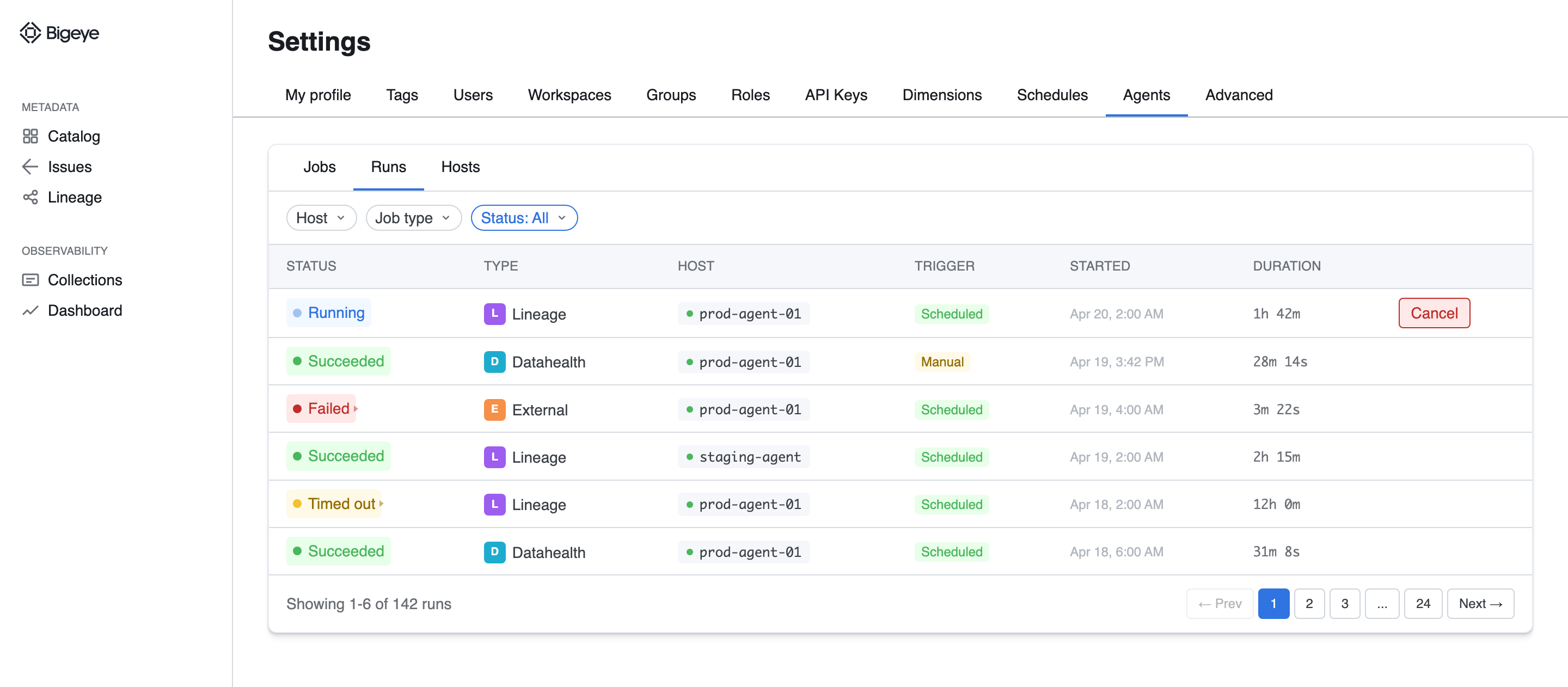
The Runs tab under Settings → Agents, showing run statuses (running, succeeded, failed, timed out) and a Cancel action on the in-progress run. Representative mockup; the shipped UI may differ.
Failed runs
When a run fails, Bigeye records an error message that surfaces the most actionable detail from the run, so you can usually diagnose a failure without leaving the UI:
- For Lineage Plus runs where some connections fail, the message lists each failed connection, its top error lines (deduplicated, up to five per connection), and the path to that connection's log file on the host.
- For other failures, it's the agent's error message, or — as a last resort — the last few lines of the agent's output.
This message is a summary, capped at roughly 4 KB; it is not the full run log.
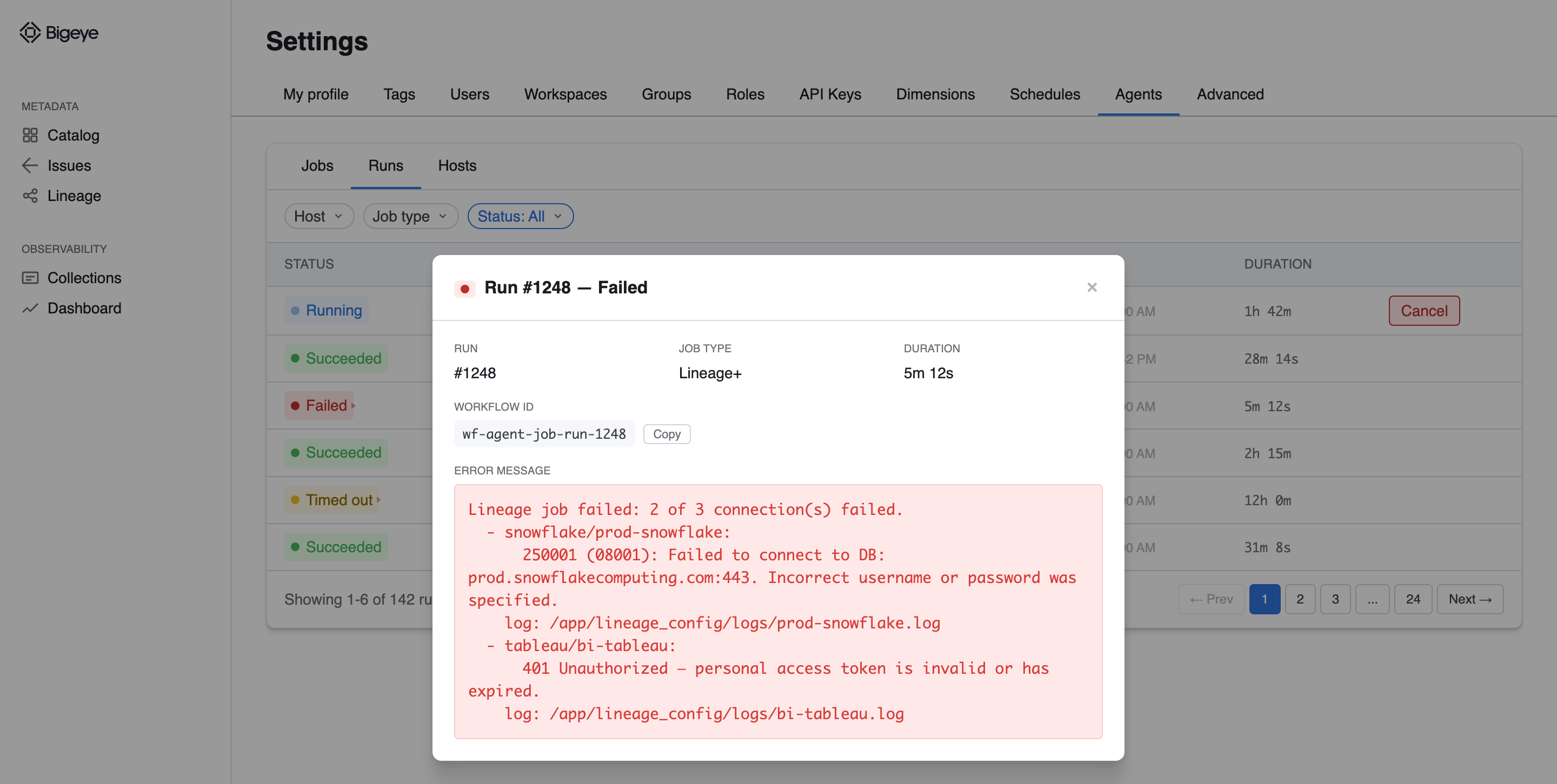
A failed Lineage+ run's detail view. The error message names each failed connection, its top error lines, and the path to that connection's log file on the host. Representative mockup; the shipped UI may differ.
Full run logs are not stored in Bigeye. The error message above is a summary of the failure. To see the complete output of a run, view the orchestrator and agent logs on the host itself:./bigeye-agent compose logs -s bigeye-agent-orchestrator
Canceling a run
Cancel an active run with the Cancel action on the running run in the Runs tab (shown above). The orchestrator propagates the cancellation to the running agent container and waits for it to stop before marking the run canceled, so the agent isn't left orphaned.
Editing a job
Update a job's parameters or schedule from its detail view. Changes apply to the next run; a run already in progress continues with the parameters it started with.
Deleting a job
Delete a job from its detail view. A job with an active run cannot be deleted — cancel the run first, then delete. Deleting a job removes its definition and schedule; its historical runs are retained for reference per your account's retention.
Troubleshooting
- Trigger or delete is rejected with a conflict — the job already has an active run. Cancel the active run, then retry.
- The target host isn't selectable — confirm the host is registered and that the agent type is in its
managed_agentsset. Re-runbigeye-agent install/bigeye-agent syncon the host to push the updated agent set to Bigeye. - A run fails immediately — start with the failed run's error message in Bigeye, then, for the full output, check the orchestrator and agent logs on the host with
./bigeye-agent compose logs -s bigeye-agent-orchestrator.
See the Troubleshooting page for more.
Updated 5 months ago