

Customizable notifications
Control the subject and message of the alerts Bigeye sends to Slack, email, and webhooks
Beta functionalityThis is a private beta feature. Please reach out to Bigeye support to enable this feature for your company. Until it is enabled, the Notification templates page and the template options described below do not appear.
What are customizable notifications?
Customizable notifications let you choose the subject and message of the alerts Bigeye sends to Slack, Email, and Webhooks. You define templates per workspace, and alerts can include issue and monitor details such as status, observed value, and expected range.
Creating a notification template
You need edit access to the workspace to create or change templates. View-only users can browse templates but not change them.
- Go to Settings > Notification templates. Use the workspace picker to choose a workspace. Templates are per workspace.
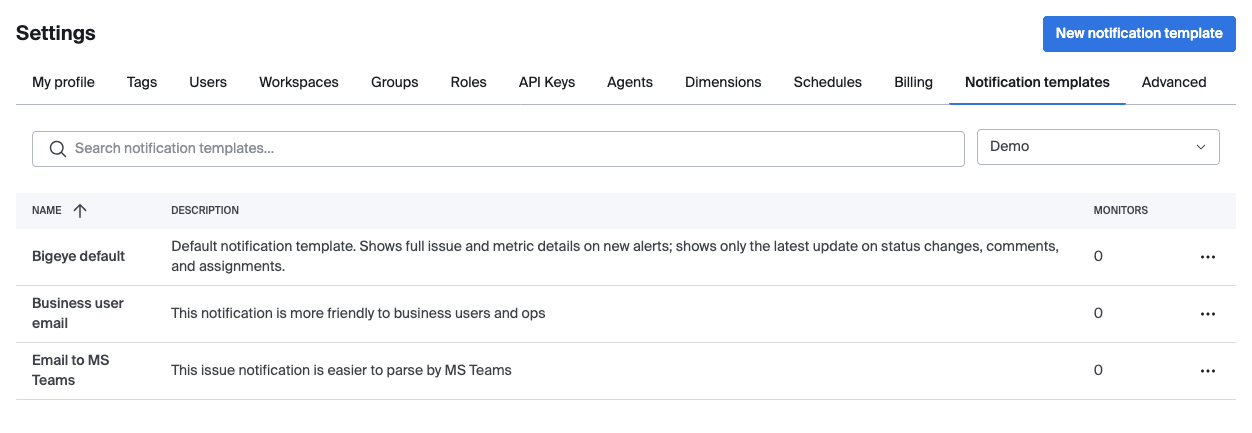
- Click New notification template. The wizard has three steps.
- Template: enter a Template name (required, up to 255 characters) and an optional Description.
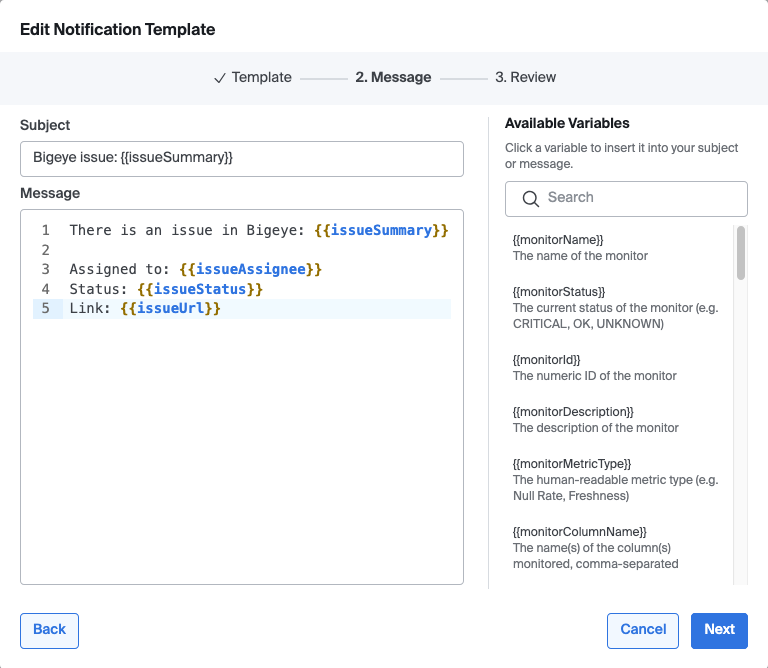
- Message: enter a Subject and Message (both required).
- Insert variables with
{{variableName}}. Type{{for autocomplete, or click a variable in Available Variables to insert it at the cursor. The panel is searchable. - Conditional sections:
{{#issueAssignee}}...{{/issueAssignee}}shows the block only when the value is set, and{{^issueAssignee}}...{{/issueAssignee}}shows it only when the value is empty. - Unknown variables are rejected on save.
- Insert variables with
- Review: check the summary. Under Test Template, enter one or more comma-separated email addresses and click Test. Optionally pick an issue under Test template with issue to fill in real values. Without one, Bigeye uses a recent open issue's metric, or any metric in the workspace. The wizard test sends email only.
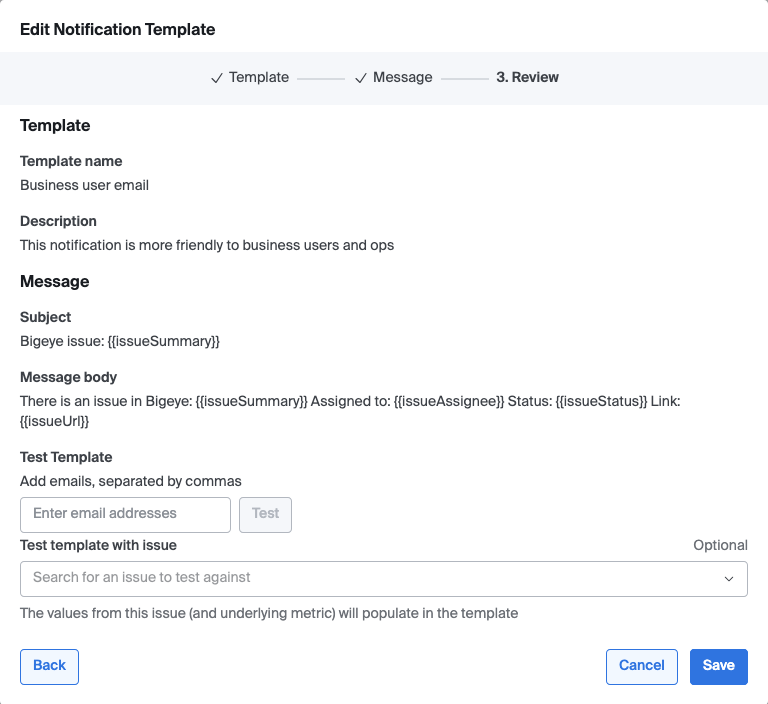
- Click Save.
Managing templates
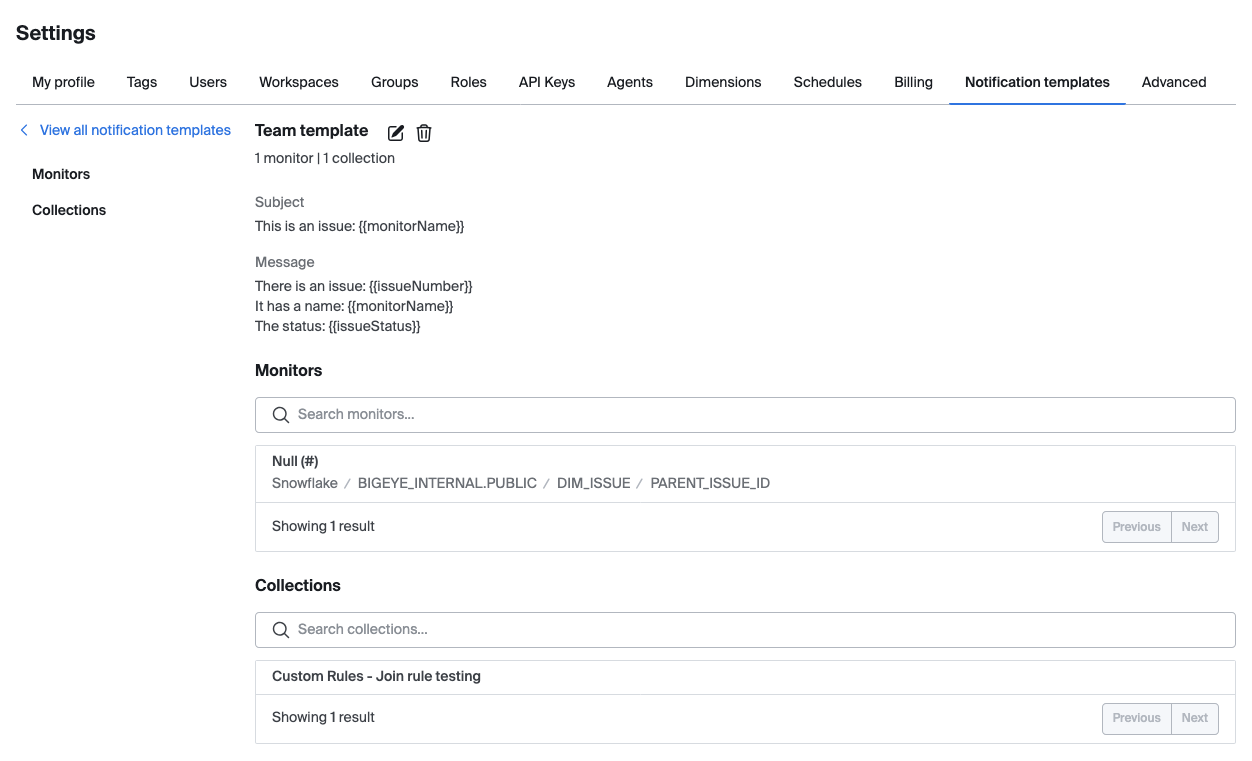
Manage templates from the Notification templates list. The row menu has Edit, Duplicate, and Delete. Click a template name to see the monitors and collections that use it.
Bigeye default template
Each workspace gets a Bigeye default template. New alerts show full issue and metric details. Status changes, comments, and assignments show only the latest update. You can duplicate it as a starting point for your own templates.
Template variables
| Group | Variables |
|---|---|
| Monitor | monitorName, monitorStatus, monitorId, monitorDescription, monitorMetricType, monitorColumnName, monitorCollections, monitorUrl, monitorRunStatus, monitorRunAt, grainStart, grainEnd |
| Location | sourceName, schemaName, tableName |
| Issue | issueId, issueNumber, issueSummary, issueDescription, issueStatus, issuePriority, issueAssignee, issueAlertCount, issueCreatedAt, issueUrl, latestIssueUpdate |
| Values | observedValue, lowerBound, upperBound, expectedRange |
Slack-only variable
interactiveButtonsadds status and mute dropdowns to Slack messages. It requires a dedicated Slack app and an issue, and is removed from email and webhook notifications.
Adding notifications to a metric or collection
You need edit access to the workspace to add notifications.
- Open a metric, then go to Edit > Notifications. For a collection, go to Edit collection > Notifications. This works for a single metric or collection only. Bulk edit shows the legacy notification fields.
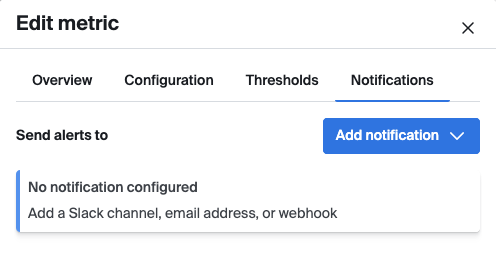
- Under Send alerts to, click Add notification and choose Slack, Email, or Webhook.
- Fill in the recipients:
- Email: add one or more addresses.
- Slack: add channels, with
#before each channel name. - Webhook: enter the URL. Optionally click Add header to add a header name and value.
- Choose a Template:
- A workspace template.
- Create new, which opens the template wizard. The new template is selected when you save it.
- Bigeye default (legacy), which keeps the original alert format.
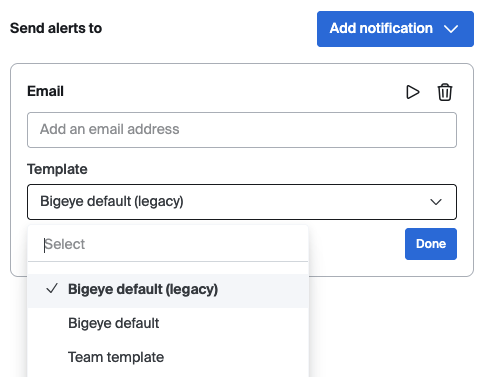
- Click Send test on an entry to preview the rendered notification. Click Done to collapse the entry.
- Click Save on the drawer.
Notification entries are not saved until you click Save on the drawer.
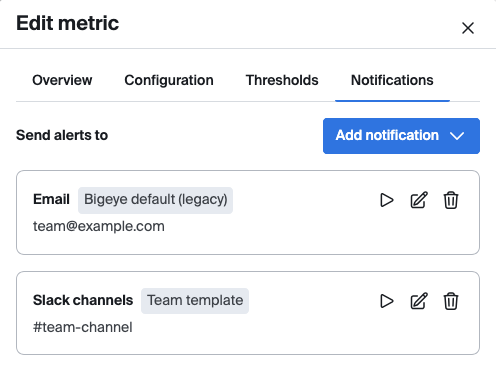
Use the edit and remove icons on an entry to change or delete it. Slack alerts for the same issue post in the same thread.
Updated 20 days ago