

Creating an issue manually
Beta functionalityThis is a private beta feature. Please reach out to Bigeye support to enable this feature for your company.
What is a manual issue?
A manual issue is an issue you create by hand, independent of any metric. Use it to track a data-quality problem you've spotted yourself, before or without a monitor catching it, and attach it to the specific table or column it affects.
Creating a new issue
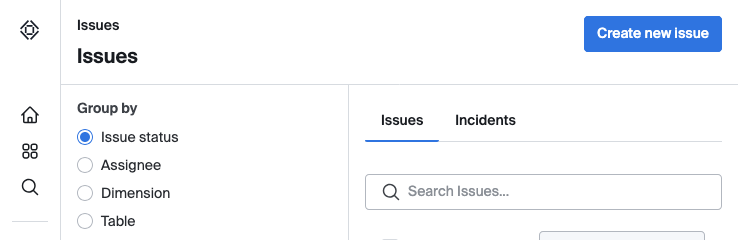
- Go to the Issues list page.
- Click Create new issue.
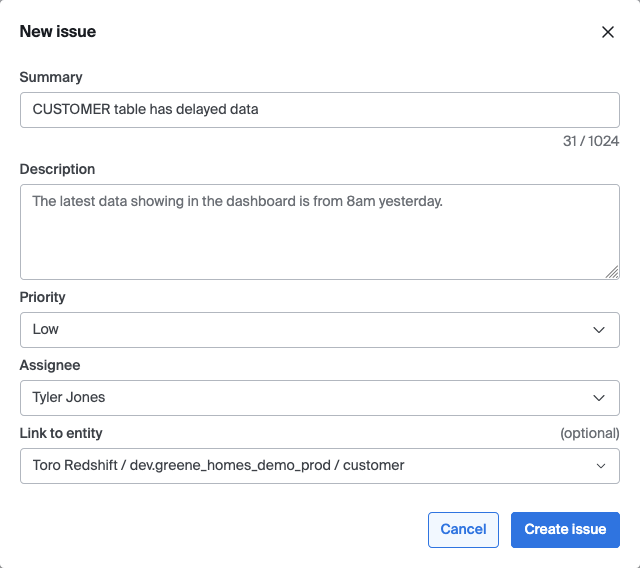
- Fill out the form:
- Summary (required): a short title for the issue.
- Description: optional details.
- Priority: same priority levels used elsewhere in Bigeye.
- Assignee: defaults to the linked table's owner (or its inherited owner, or you, if none is set). You can change it.
- Link to entity (optional): search for and select the table or column the issue is about.
- Click Create issue.
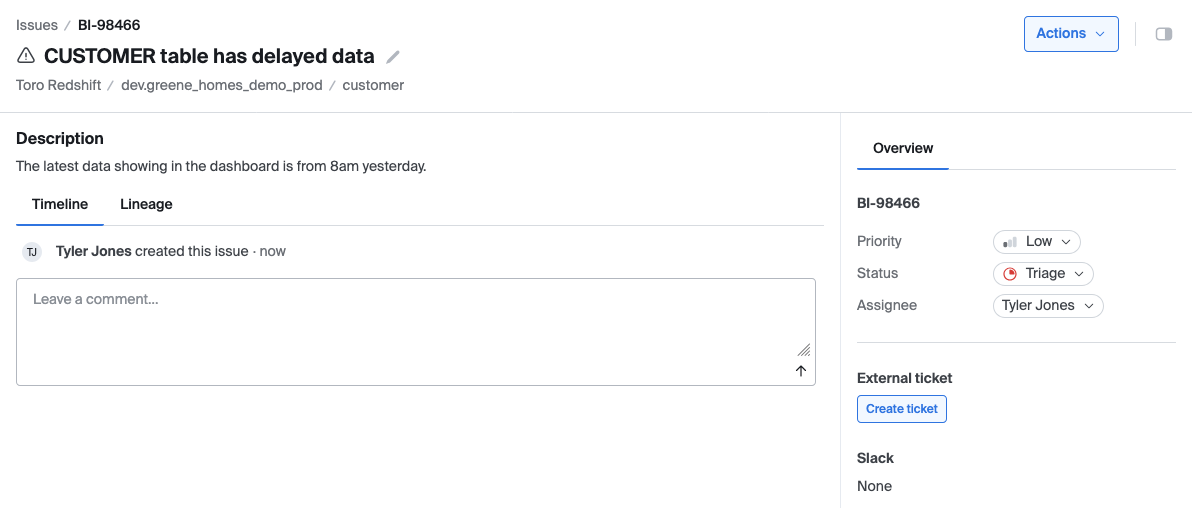
You'll land on the new issue's detail page, where it behaves like any other issue (comments, status changes, assignment), except it isn't tied to a metric run.
Linking to a catalog asset
Use the "Link to entity" field to associate a manual issue with a catalog asset. You can search for and select one asset per issue, including tables, columns, schemas, and datasets. Reports and AI agents aren't supported yet. That link is what makes the issue show up when you view issues for that asset elsewhere in the product.
Notifications
Setting an assignee when you create the issue doesn't send a notification on its own. The assignee will see the issue wherever their assigned issues normally appear. Changing the assignee later, after creation, does trigger the usual assignment notification.
Scorecard
Manual issues do not yet factor into the workspace Scorecard. Scorecard health scoring is based on metric runs, and manual issues aren't tied to a metric. Support for including manual issues in Scorecard is coming soon.
Updated about 1 month ago