

Policies
Private BetaPolicies are in private beta and currently support AI agent guardrails. Reach out to your Bigeye account team if you'd like them enabled for your workspace.
Policies let you set automated guardrails over your AI agents. Describe what you want to catch in plain English, and Bigeye turns it into the rule it runs behind the scenes. When a policy matches, Bigeye opens an issue. Policies don't block anything in real time; they're a governance layer on top of what Agent Trust already observes.
Creating a Policy
Go to Agent Trust → Policies and click Create policy. You'll walk through four short steps:
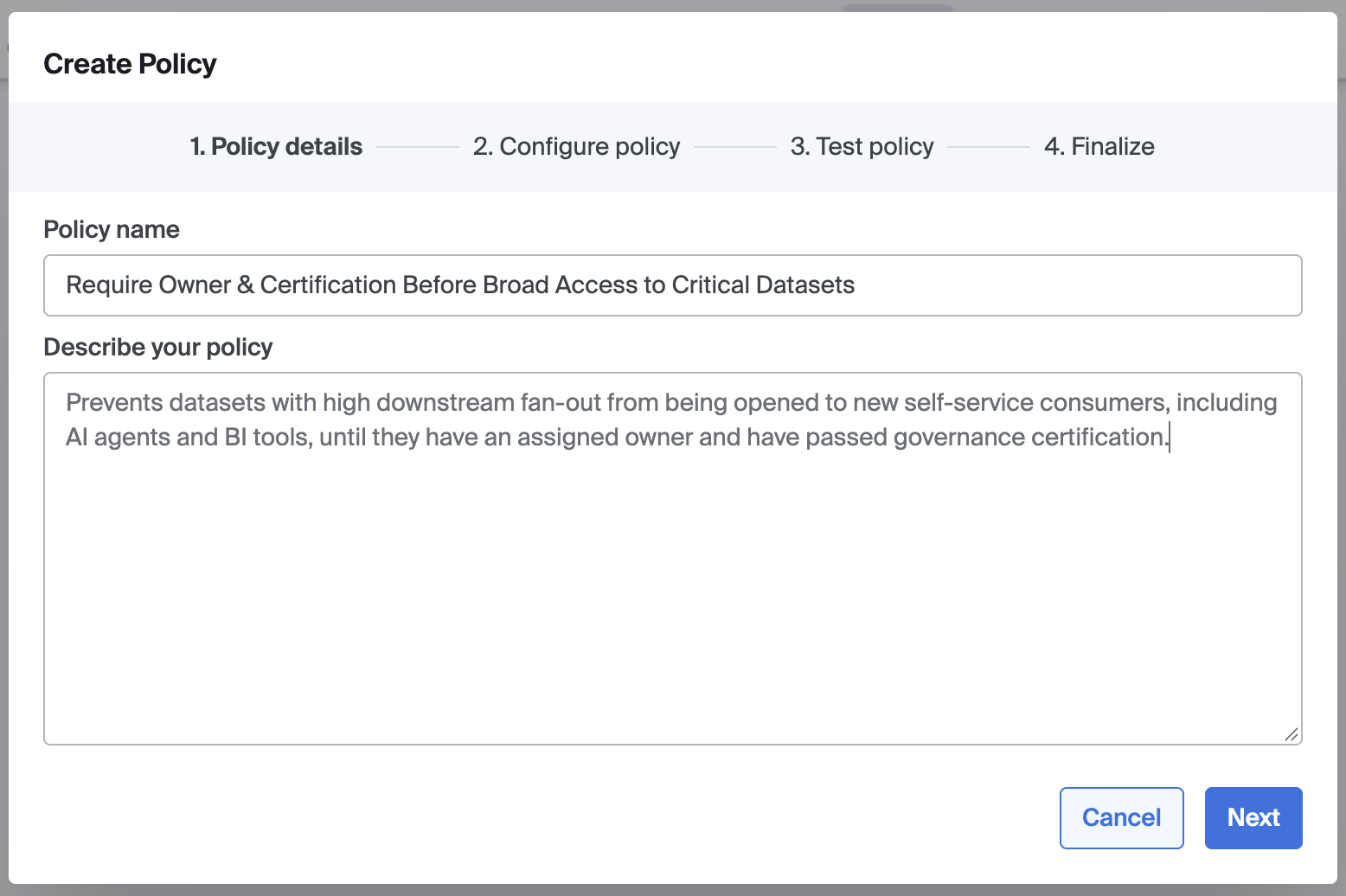
- Policy details: give the policy a name and describe what you want to guard against, in plain English.
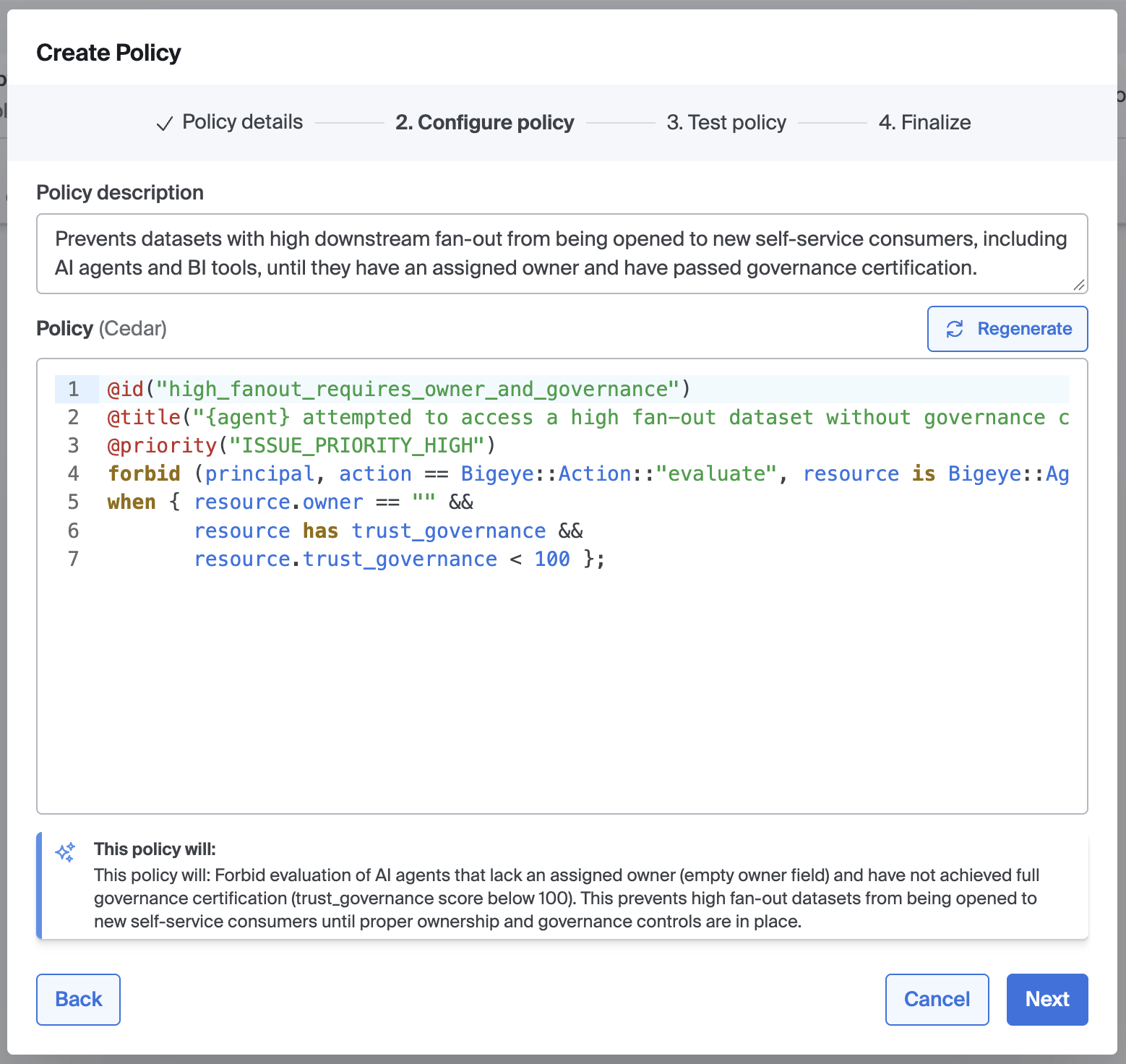
- Configure policy: click Generate, and Bigeye turns your description into the underlying rule, along with a plain-English summary of what it does. It checks the rule's syntax automatically and shows a Valid syntax confirmation, or an error if something needs fixing.
- Test policy: pick an agent and a lookback window (7, 30, or 90 days), then click Run to see which of that agent's conversations would have matched. This is a preview only; nothing is blocked and no issues are created.
- Finalize: choose Enabled or Disabled, then click Create policy.
Under the hoodBigeye compiles your description into a rule written in Cedar, an open-source policy language. You can see and edit that rule directly on the Configure step, or later from the policy's Overview tab, but you don't have to touch it to create a working policy.
Creating, editing, and deleting policies requires Manage permission on the policy.
Administering Policies
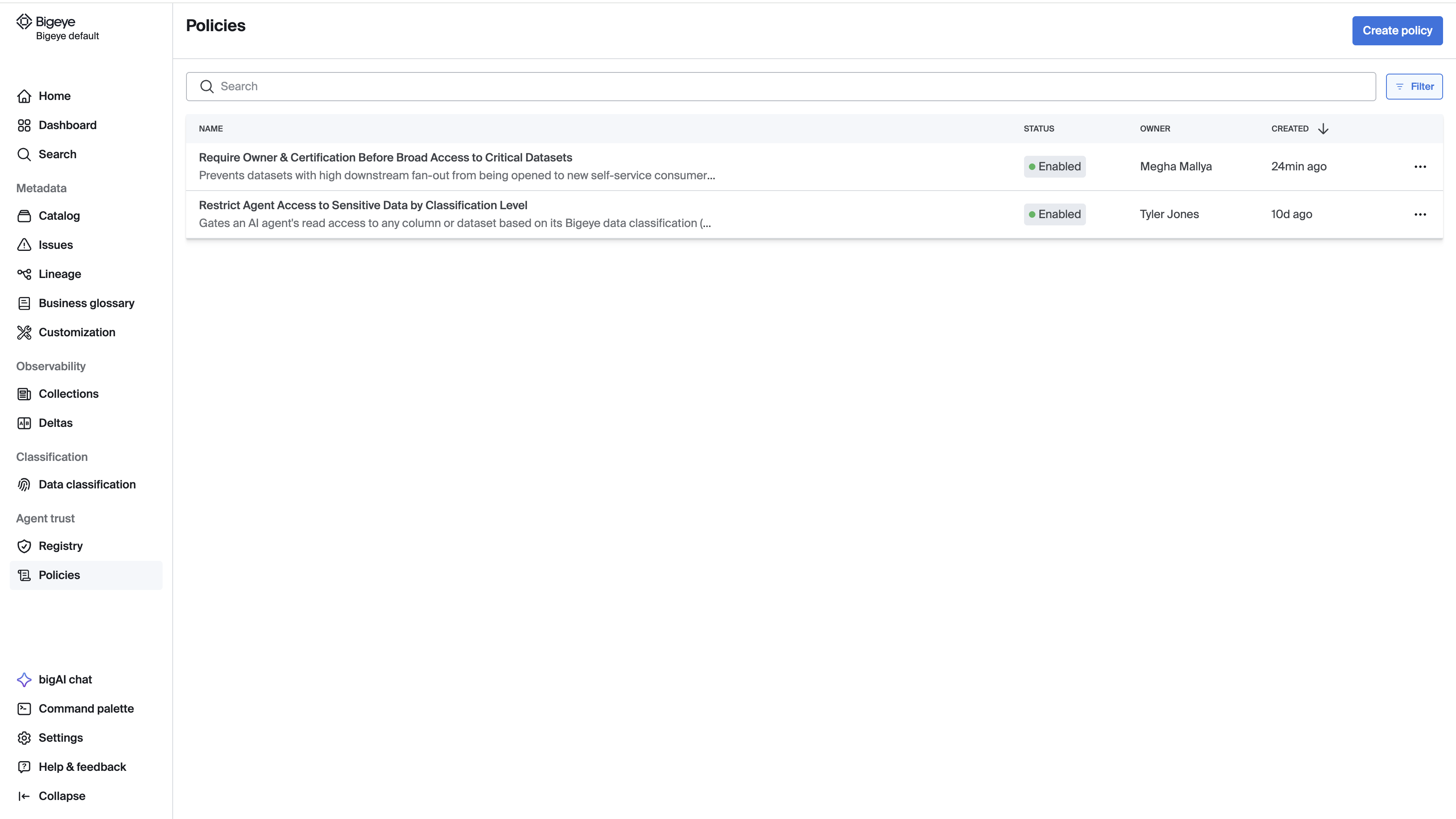
- Policies list (
Agent Trust → Policies) shows every policy with its name, status, owner, and when it was created. Search, or click Create policy to start a new one. - Quick actions: use the "..." menu on a policy's row in the list to edit, enable/disable, or delete it without opening it.
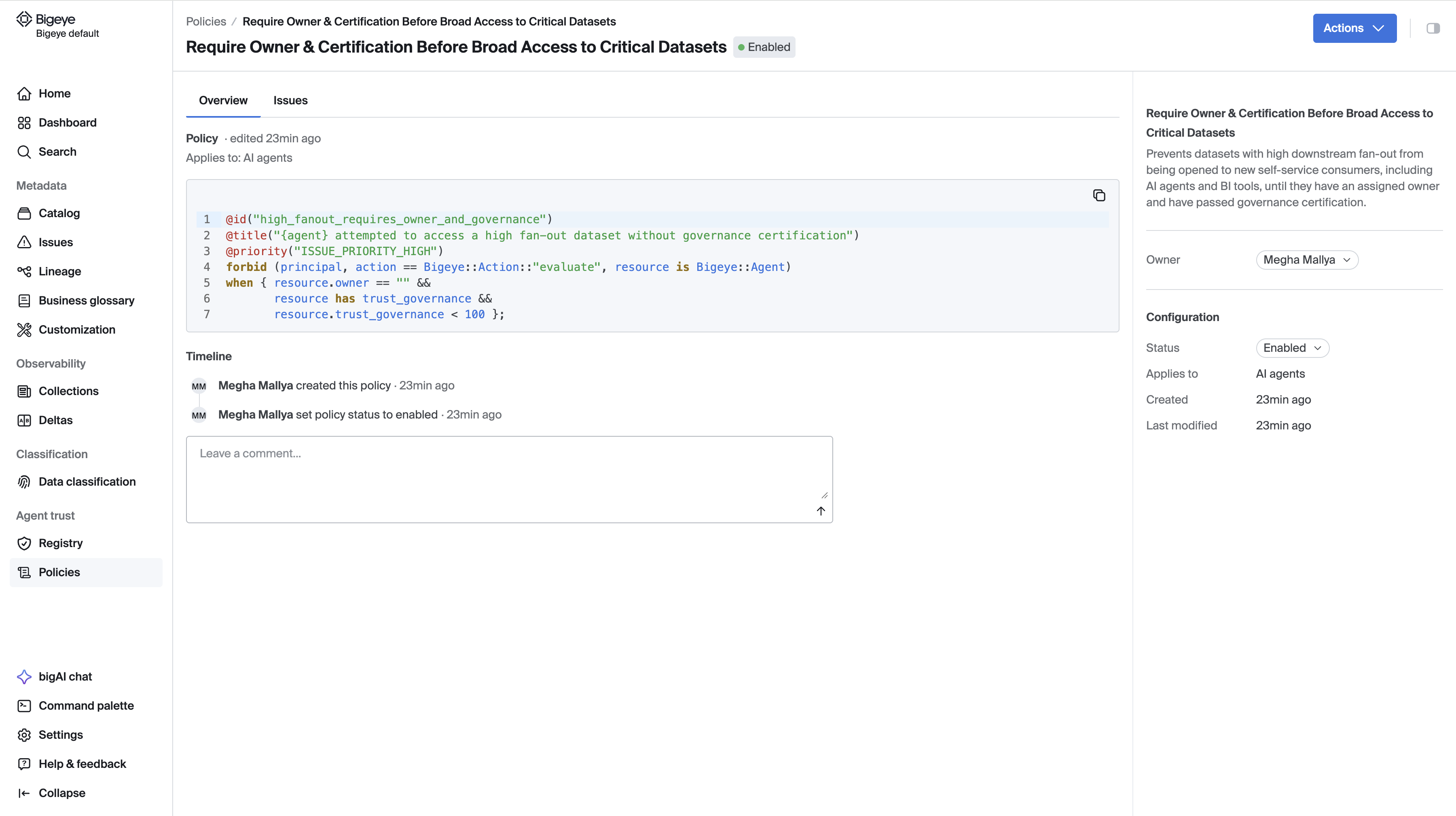
- Policy detail has an Overview tab (the generated rule, plus a timeline of status changes, edits, and comments) and an Issues tab (every issue the policy has opened). The right-hand pane lets you set an owner and change the policy's status; the Actions button handles editing and deleting.
- Comments on the Overview tab let your team discuss a policy inline.
Viewing and testing policies requires View permission on the policy. Commenting requires Edit permission. Creating, editing, and deleting them requires Manage permission.
Policy Issues
When a policy matches, Bigeye opens an issue for it. That's the policy engine's only side effect. A policy only ever opens one issue per agent: if the same agent matches the same policy again, Bigeye won't open a duplicate. Editing or re-enabling a policy doesn't retroactively clear issues it already opened.
The issue's title and priority are set automatically based on what matched. You'll find these issues on the policy's Issues tab, or alongside your workspace's other issues.
Examples
These are the kinds of guardrails you can set up today, written the way you'd type them into the Description field.
1. Flag low-trust agents that are active
What you'd type: "Flag any active agent with a governance trust score under 50."
Bigeye translates this to:
forbid (
  principal,
  action == Bigeye::Action::"evaluate",
  resource
) when {
  resource.status == "AI_AGENT_STATUS_ACTIVE" &&
  resource.trust_governance < 50
};
2. Flag agents on a specific platform
What you'd type: "Flag any active Snowflake agent so I can review it."
Bigeye translates this to:
forbid (
  principal,
  action == Bigeye::Action::"evaluate",
  resource
) when {
  resource.platform == "AI_PLATFORM_SNOWFLAKE" &&
  resource.status == "AI_AGENT_STATUS_ACTIVE"
};
You don't need to write either version by hand. Describe the guardrail in plain English, click Generate, and Bigeye produces the rule above. You can still fine-tune it directly if you want finer control.
Updated 21 days ago