

Business Glossary
Define governed business terms, link them to the catalog assets they describe, and find them from anywhere in Bigeye.
Beta functionalityThis is a private beta feature. Please reach out to Bigeye support to enable this feature for your company.
The Business Glossary is a shared, searchable place to define the business terms and KPIs your organization cares about — things like "Net Revenue" or "Active User" — and link each one directly to the warehouses, schemas, tables, and columns that implement it. Because it lives in your data catalog, anyone looking at a table or column can see which business terms apply to it, and anyone looking up a term can see exactly where it's implemented.
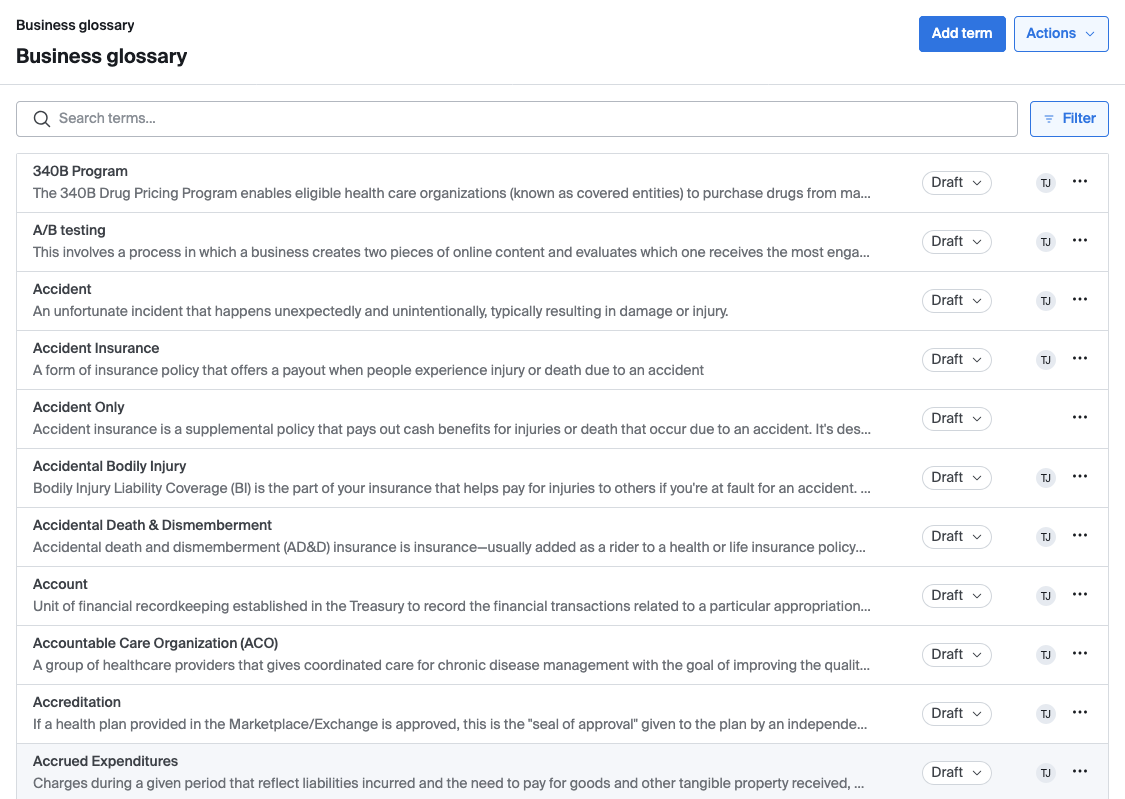
Creating and editing a term
From the glossary list page, select Add term to create a new term. Each term has:
- Name — required, must be unique within its category. Two categories can each have a term with the same name (e.g. "Revenue" under both Finance and Sales).
- Category — optional. Files the term under one of your workspace's categories. A term without one is listed under No category.
- Description — a longer explanation of the term, written in Markdown (so you can use formatting like bold, lists, and links).
- Synonyms — alternate names people might search for (e.g. "Revenue", "Sales" as synonyms for "Net Revenue"). Synonyms are searchable alongside the term name.
- Examples — sample values or usage notes.
Existing terms can be edited the same way from either the glossary list or the term's own detail page.
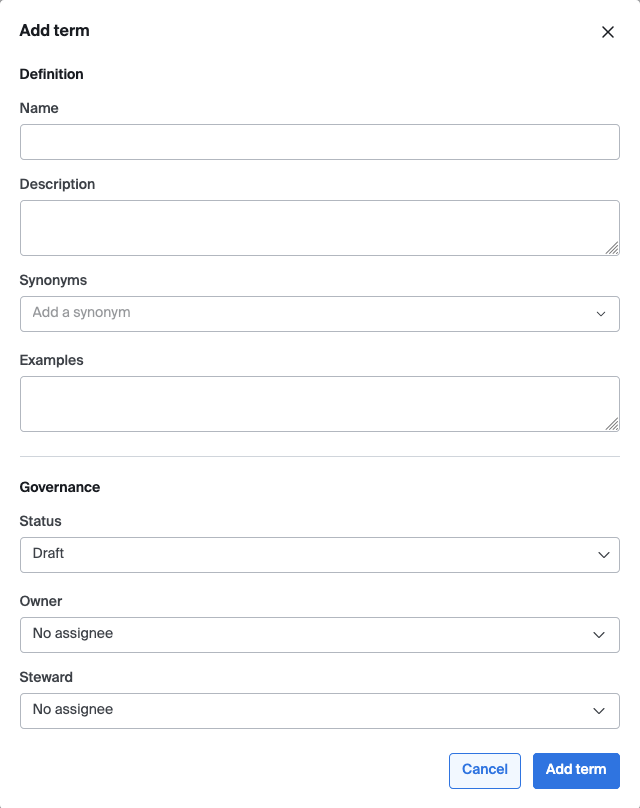
Categories
Categories group related terms, such as Finance, Sales, or Product. Each term can belong to at most one category.
Managing categories
To add, rename, or remove categories, open Actions → Edit categories on the glossary list page. This option is only shown to users with the Edit Glossary permission.
- Category names must be unique within your workspace. Matching ignores capitalization, so "Finance" and "finance" count as the same name.
- Renaming a category updates every term filed under it.
- You can't remove a category while terms are still filed under it. Move those terms to another category, or to No category, first.
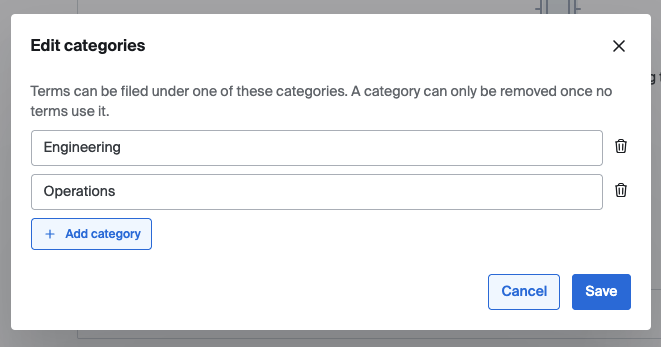
Browsing by category
Once your workspace has at least one category, the glossary list page shows a category menu on the left, and lists one category's terms at a time:
- No category is first in the menu and is selected by default.
- Your categories follow in alphabetical order.
- Search and the status and owner filters apply within the selected category.
- When you select Add term, the new term starts in the category you're viewing.
If your workspace has no categories, the list page shows every term, as before.
Status
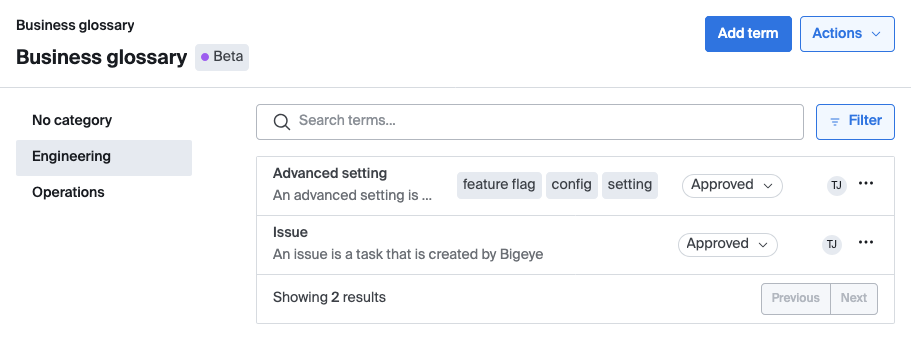
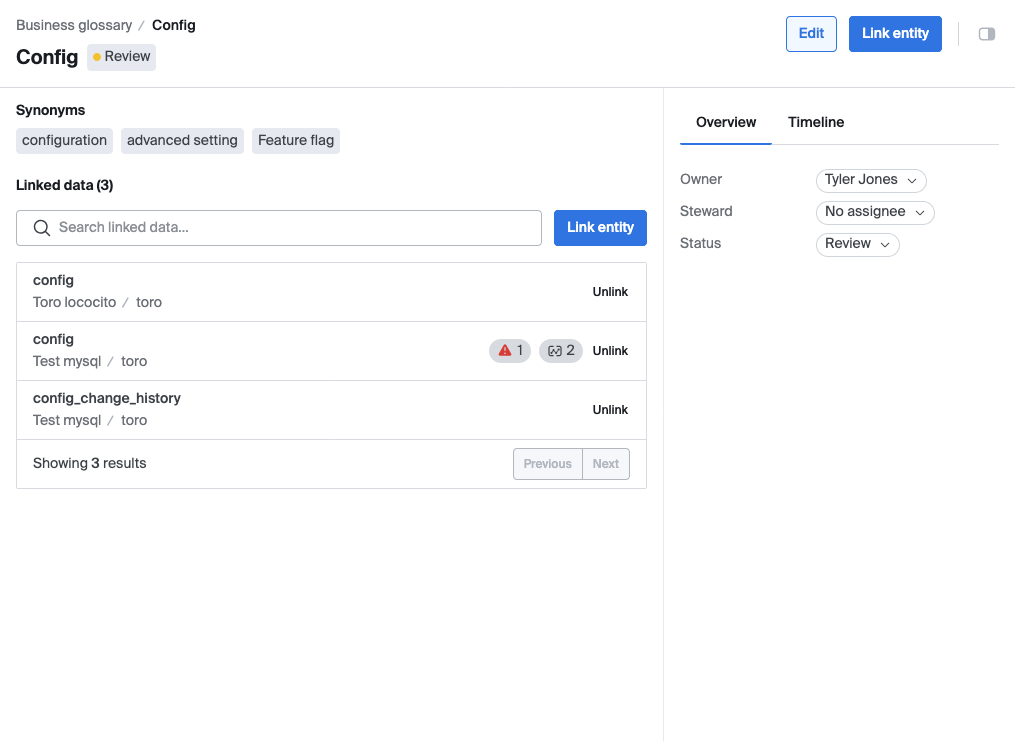
Every term has a status: Draft, Review, Approved, or Deprecated. Status is set manually by whoever is editing the term — there is currently no enforced workflow requiring a term to pass through Review before it can be marked Approved, and no automatic transitions. Status is meant as a signal of a term's maturity/trustworthiness, and is shown throughout the product (list, term page, linked assets, search results) as a colored badge.
Owner vs. Steward
Terms have two optional people fields:
- Owner — the person accountable for the term's definition and accuracy. Defaults to whoever created the term.
- Steward — the person who maintains the term day-to-day (keeping it up to date, fielding questions about it). Optional, and can be different from the owner.
Neither field currently affects permissions — they're informational, so people know who to ask.
Linking terms to your data
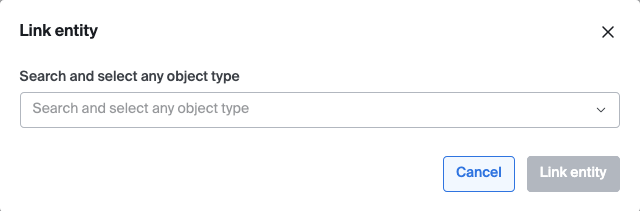
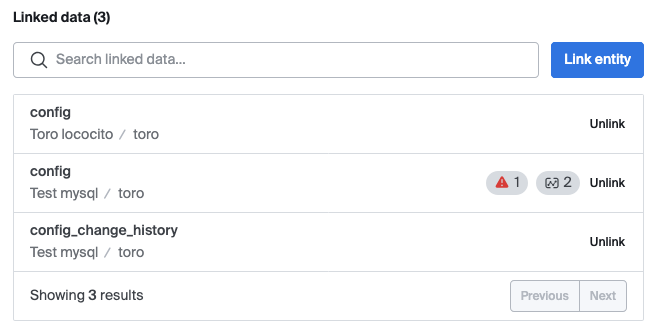
A term can be linked to one or more warehouses, schemas, tables, or columns (and certain other cataloged assets). From a term's detail page, use Link entity to search your catalog and select what the term applies to.
Important: linking at a parent level is a single link, not a cascade. Linking a term to a whole schema does not automatically link it to every table or column inside that schema — it's one link, recorded at the schema level. If you also want the term linked at the table or column level, link those individually.
You can also manage links from the other direction: any table, schema, or column's detail page has a Glossary terms section where you can add or remove linked terms directly, without going to the term page.
![Asset detail page right-hand pane, "Glossary terms" section with linked term pills and the Add term control]](https://files.readme.io/231c7b75c6bb32252c08ae7947e9869dd8617a0fcc06ae8fa31fc98a7c68d24f-Glossary_7.png)
Where terms show up
- Glossary list page — browse, search, and filter all terms in your workspace.
- Term detail page — the full definition, synonyms, examples, owner/steward, status, and a table of everything it's linked to.
- Asset detail pages — any linked table, schema, or column shows its glossary terms in its metadata pane, with a link back to the term.
- Global search — terms are searchable by name, synonym, or category name alongside the rest of your catalog.
Outside the glossary list, a term that belongs to a category is shown as Category › Term, for example "Finance › Net Revenue". This applies on term detail pages, on asset pages, in the term picker, and in global search.

Permissions
- Viewing the glossary — the list, term pages, and asset-side links — only requires being a member of the workspace.
- Any change — creating, editing, or deleting a term; changing its status, owner, steward, or category; linking or unlinking it from an asset; adding, renaming, or removing categories — requires the Edit Glossary permission. This permission is granted by default to the Manage and Edit roles.
Bulk import and export
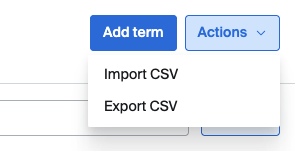
The glossary list page supports exporting all terms to a CSV file, and importing terms in bulk from a CSV.
The CSV has one row per term, with these columns:
| term | synonyms | description | examples | status | owner | steward | category |
|---|---|---|---|---|---|---|---|
| Net Revenue | Revenue, Sales | Total revenue net of discounts and returns. | 1200000 | Approved | [email protected] | [email protected] | Finance |
| Active User | A user who has logged in within the last 30 days. | Draft | [email protected] |
synonyms, examples, steward, and category may be left blank. A blank category means No category. owner and steward are matched by email address.
When a file includes a category column, each row is matched on its name and category together:
- If a term with that name already exists in the row's category, that term is updated.
- If the name exists in exactly one other category and appears only once in the file, that term is moved into the row's category and updated. This means you can recategorize terms by editing the
categorycolumn of an export. - Otherwise, a new term is created in the row's category.
If a row names a category that doesn't exist yet, the import creates it. The import summary lists any categories it created, so you can catch typos.
When a file has no category column, rows are matched by name alone: a row matching an existing term updates it, and a row with a new name creates a new term. If a name is used in more than one category, that row fails, because the import can't tell which term you mean.
Updated 27 days ago