

Multi-factor Authentication
Public Beta featureThis feature is in public beta. Please contact Bigeye support with any questions or feedback!
Two-factor authentication (2FA/MFA) adds a second step to signing in with a password, so a stolen password alone isn't enough to reach an account.
Applies to password-based sign-in onlyUsers who sign in through SSO are unaffected — their second factor is handled by their identity provider.
Summary
- Supported factor: authenticator app (TOTP) — apps like 1Password, Google Authenticator, and Okta Verify. Email codes and security keys/passkeys are planned but not yet available.
- Recovery codes: 10 single-use codes issued on enrollment, for when a device is lost.
- Settings (Settings > Advanced > Multi-factor authentication):
- Multi-factor authentication — lets users opt in and enroll a second factor. Nothing changes for anyone until they enroll.
- Require multi-factor authentication — makes enrollment mandatory. Unenrolled users are walked through setup at their next sign-in instead of being locked out.
- Authenticator app — turns on TOTP as an available factor, currently the only option.
- Allow password authentication for the API — independent setting. MFA only protects browser sign-in, so leaving this on still lets a stolen password reach the API directly.
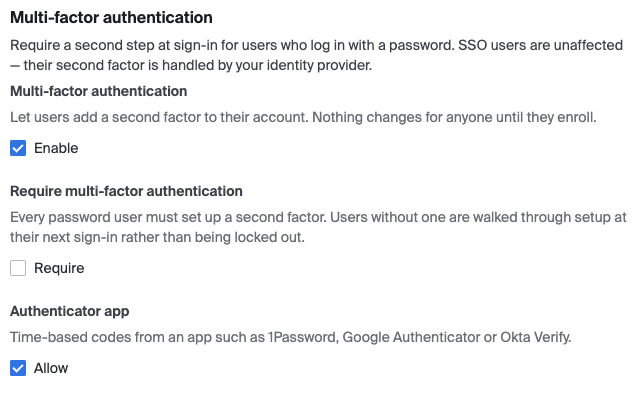
Advanced Settings > Multi-factor authentication section
Turning on MFA for your organization (Admin)
- Go to Settings > Advanced > Multi-factor authentication.
- Turn on Multi-factor authentication.
- Optionally turn on Require multi-factor authentication to make it mandatory.
- Turn on Allow under Authenticator app so users can actually enroll.
Don't leave API password auth open if you require MFAIf you require MFA, also consider turning off Allow password authentication for the API — otherwise a stolen password still reaches the API even though the browser is protected. The Advanced Settings page shows a warning while both are on at once.

Warning banner shown when both Require MFA and Allow password auth for the API are enabled
Setting up your authenticator app
- Go to Settings > My profile.
- Under Two-factor authentication, select Add authenticator app.
- Scan the QR code with an authenticator app, or enter the secret key shown below it manually.
- Enter the 6-digit code the app generates and select Verify and enable.
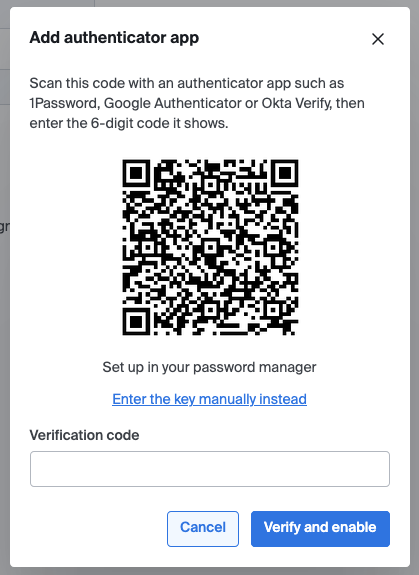
Profile page, Two-factor authentication section before enrollment
- You'll immediately see 10 recovery codes — save these somewhere safe, like a password manager. Each works once, as a stand-in for your authenticator app if you lose your device.
Save your recovery codes nowThis is the only time your recovery codes are shown in plaintext, so this is your one chance to save them.
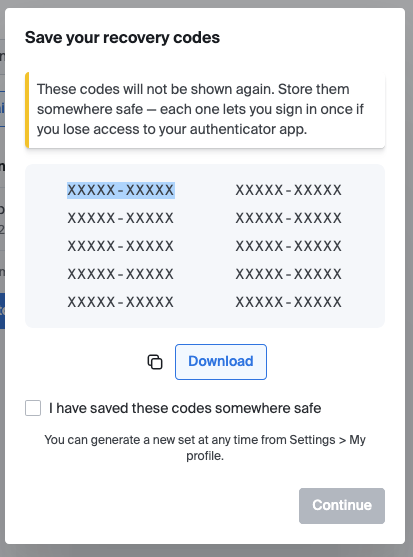
Recovery codes modal
Signing in with MFA
After entering your email and password, you'll be prompted for a code from your authenticator app.
- If your organization requires MFA and you haven't enrolled yet, you'll go through the same QR-code enrollment step shown above before you can continue.
- Lost your device? Select Can't access your authenticator app? to enter a recovery code instead.
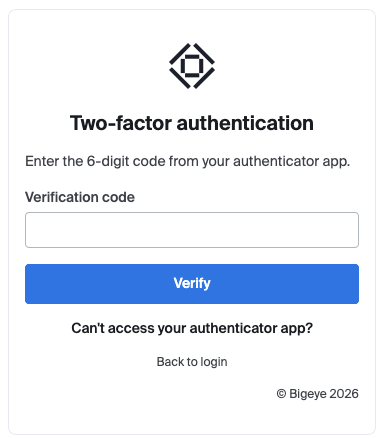
Sign-in MFA challenge screen — Two-factor authentication, code entry field, and the recovery-code fallback link
Managing your authentication methods
From Settings > My profile > Two-factor authentication:
- Remove a method at any time. You'll need to confirm with a current code from your authenticator app or a recovery code first — otherwise anyone with access to an unlocked, signed-in browser could quietly turn MFA off.
- Generate new codes replaces your recovery codes (also requires confirming with a current code) and immediately invalidates the old ones.
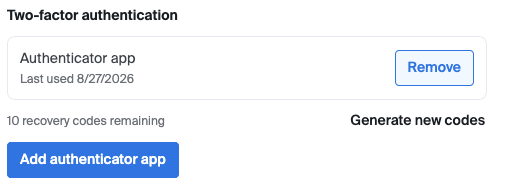
Profile page, Two-factor authentication section after enrollment — factor list, Remove button, and recovery codes remaining
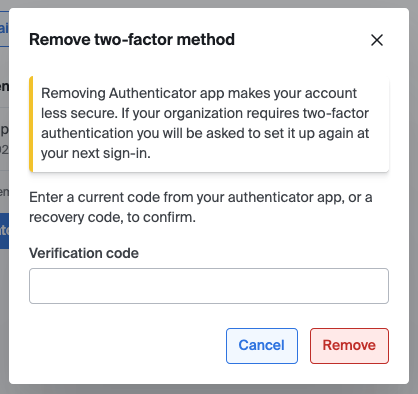
Remove two-factor method confirmation modal
Limitations (at launch)
- Authenticator app (TOTP) is the only available second factor. Email one-time codes and WebAuthn/security keys and passkeys are planned but not yet enabled.
- SSO users don't see this feature — their identity provider enforces MFA instead.
- If someone loses both their device and their recovery codes, an admin can reset MFA on their account via support — self-service recovery isn't possible in that case.
Updated 2 months ago