

Connecting Copilot Studio to Agent Trust Hub
Bigeye reads your Copilot Studio agents' conversation transcripts from the Dataverse database of
their Power Platform environment. It uses a Microsoft Entra app that you register and that can only
read. Nothing is installed in Copilot Studio, and your agents don't change.
What you'll see in Bigeye
- Agents: every agent in the environment, including agents on Copilot Studio's new experience.
- Conversations: each conversation and its turns, with the user who started it.
- Data access: the tables and columns each agent's SQL Server connector queries touched, the
uploaded knowledge files and web pages its searches returned, and the calls it made through other
connectors. Tables and columns are matched to your catalog when the SQL Server database is a
Bigeye source. - Sub-agents: what a connected agent queries is recorded under that agent, not under the agent
that called it.
Prerequisites
-
Agent Trust Hub enabled for your Bigeye workspace, and Manage permission on connections.
-
Copilot Studio support enabled for your Bigeye account. It's off by default during rollout;
ask your Bigeye contact to turn it on. Until it's on, Agent Trust and the Catalog don't offer
Copilot Studio under Add source. -
A Sandbox or Production Power Platform environment. Developer and Teams environments don't save
transcripts. -
The environment saves transcripts: Power Platform admin center → the environment → Settings →
Product → Features → Copilot Studio agents → Allow conversation transcripts and
their associated metadata to be saved in Dataverse.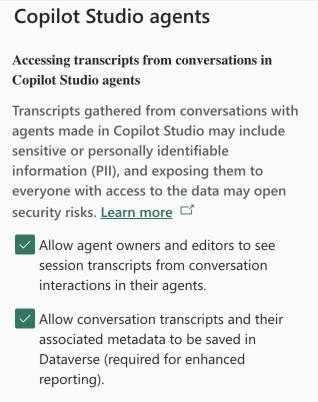
-
Permission to register an app in Microsoft Entra ID and to add application users and security
roles in the environment.
Setup
1. Register an app in Microsoft Entra ID
In the Entra admin center, go to App registrations → New registration. Then, on the app:
-
Copy the Directory (tenant) ID and the Application (client) ID from Overview.
-
Under Certificates & secrets, create a client secret and copy its Value. Bigeye needs the
Value, not the Secret ID. The Value is shown in full only right after you create the secret.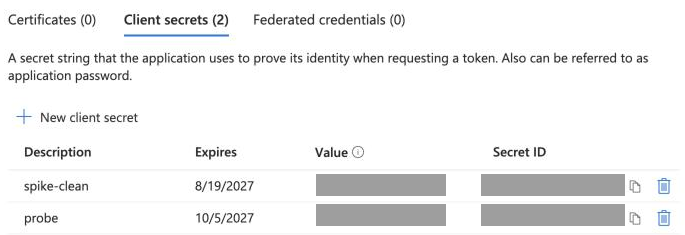
2. Add the app to the environment as an application user
In the Power Platform admin center, open the environment, then go to Settings → Users +
permissions → Application users → New app user, and add the app from step 1.
3. Give the app read access to transcripts and agents
Create a custom security role with Organization-level Read on the
ConversationTranscript (conversationtranscript) and Agent (bot) tables, and assign it
to the application user.
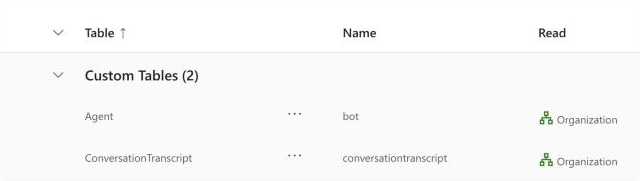
Organization level is requiredTranscripts and agents are user-owned records, so read access at any lower level, such as User, lets the app see none of them. The built-in Bot Transcript Viewer role grants only User-level read on transcripts and no read on agents, so Bigeye can't use it.
4. Optional: let Bigeye show users' email addresses
Grant the app the Microsoft Graph User.ReadBasic.All application permission, with admin
consent: Entra admin center → App registrations → the app → API permissions → Add a
permission → Microsoft Graph → Application permissions.
Without it, Bigeye identifies each user by their Entra object ID.
5. Add the source in Bigeye
-
In Agent Trust, click Add source and choose Copilot Studio. You can also start from
Catalog → Add source → Copilot Studio. -
Enter the environment's Dataverse URL, for example
https://orgXXXXXXXX.crm.dynamics.com.
It's the environment URL shown in the Power Platform admin center. -
Enter the Directory (tenant) ID, Application (client) ID, and Client secret from
step 1, then save.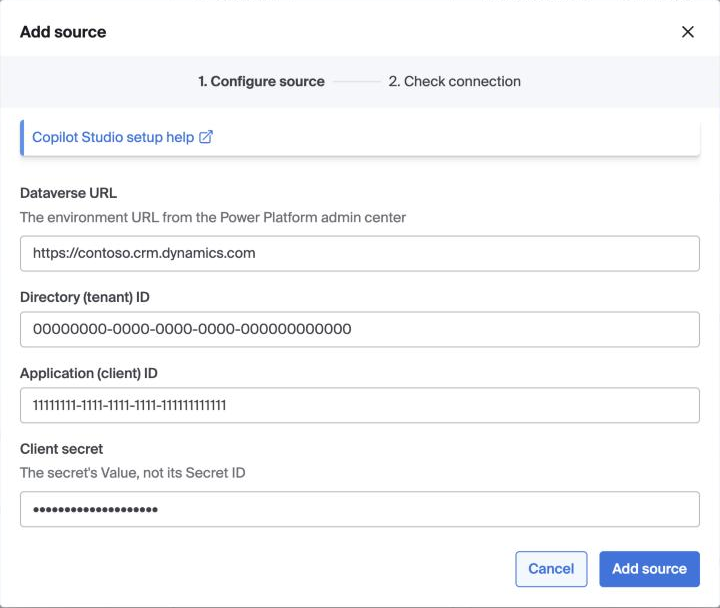
Bigeye checks the connection as soon as you save it and lists the agents it found.
We recommend connecting each Power Platform environment from its own Bigeye workspace.
Changing the tenant ID or Dataverse URLChanging a connection's directory (tenant) ID or Dataverse URL points it at a different environment's data, the same as repointing any source. On its next sync, Bigeye reads that environment's last 30 days of transcripts.
Verify it works
-
After you save, each check should pass, and Bigeye should list your agents with their harness:
Standard, or GitHub Copilot for agents on the new experience.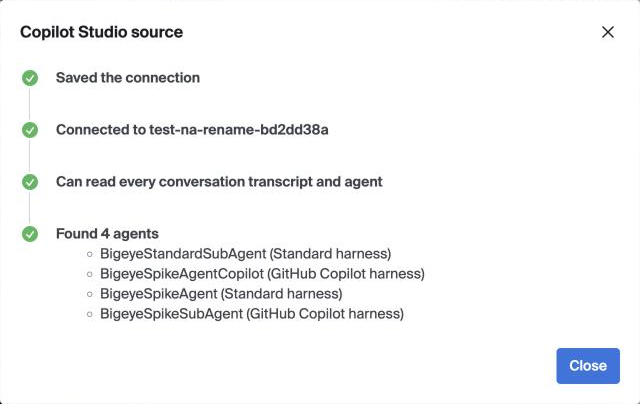
-
Have a conversation with one of your agents.
-
Look for it in Agent Trust → Conversations after the next sync.
Copilot Studio writes a transcript about 30 minutes after a conversation goes quiet, and Bigeye
syncs transcripts nightly. A conversation can take until the next day to appear. On its first sync,
Bigeye reads every transcript Dataverse still holds. Copilot Studio keeps transcripts for about
30 days.
What's captured, what's not
Captured
- Each conversation's questions and replies. If your workspace restricts data, or Agent Trust Hub
prompt sync is off, Bigeye stores each conversation's ID in place of its text, and records each
tool call by its connector and action only, without its arguments or result. - The SQL your agents run through the SQL Server connector, as the tables and columns it read.
- Calls your agents make through any other connector, as the connector and action called, with the
call's arguments and result. - The names of the uploaded knowledge files and the addresses of the web pages that your agents'
searches returned, whether or not the answer used them. - The user behind each conversation, when the channel records one. A demo website without sign-in
doesn't.
Not captured
- The content of knowledge files and web pages.
- Catalog matches for connectors other than SQL Server. Bigeye records those calls but doesn't match
them to tables in your catalog. - Catalog matches for the SQL Server connector's table actions, such as Get rows. Only Execute
a SQL query is matched to your catalog. - Tool calls that failed or were still waiting for a user's consent.
- Conversations that Copilot Studio didn't save to Dataverse. Agents on the new experience save
transcripts only once they're published, and conversations in their test pane aren't saved.
Troubleshooting
"Microsoft Entra ID refused the directory (tenant) ID, application (client) ID, or client
secret." Check all three values, and that you copied the secret's Value rather than its Secret
ID. A secret that has expired fails the same way.
"The app isn't an application user in this environment." Add it as described in step 2. Make
sure you add it to the environment whose Dataverse URL you entered.
"…grant read on the conversationtranscript table below Organization level" or "…on the bot
table below Organization level". Set the role's Read on that table to Organization, as described
in step 3.
"…don't grant read on the conversationtranscript table" or "…on the bot table". Add Read on
that table to the app's security role.
"The request to Dataverse failed." Bigeye shows the reason under the message.
- "Could not find
<host>. Check the Dataverse URL." The URL has a typo, or the environment no
longer exists. Copy the environment URL from the Power Platform admin center. - For any other reason, check that the Dataverse URL is the environment URL, such as
https://orgXXXXXXXX.crm.dynamics.com. Bigeye supports Dataverse URLs ending in.dynamics.com.
No conversations appear. Check that the environment saves transcripts (see Prerequisites), that
agents on the new experience are published, and that at least a day has passed since the
conversation.
Updated about 6 hours ago